

EV Driver Support
Find a charger, start a session, or get help with your account.

I need help starting a charge session.
Learn how to claim a station, plug in your vehicle, and how PowerFlex charging works.


I’m having trouble charging my EV.
Get help if your plug is stuck, QR code won’t scan, or session won't start.

I have a question about payments.
How to pay for your session, add funds to your wallet, or request a refund.

I’m having an issue with the app or my account.
Reset your password, change your email address, claim a discount, and more.

Where do I download the app?
Get the PowerFlex app for iOS and Android, and explore the user guide.



Getting Started & Charging
Start by downloading the PowerFlex app from the App Store (iPhone) or Google Play (Android). After creating an account and adding a payment method, tap the Locations tab to find a charger near you.
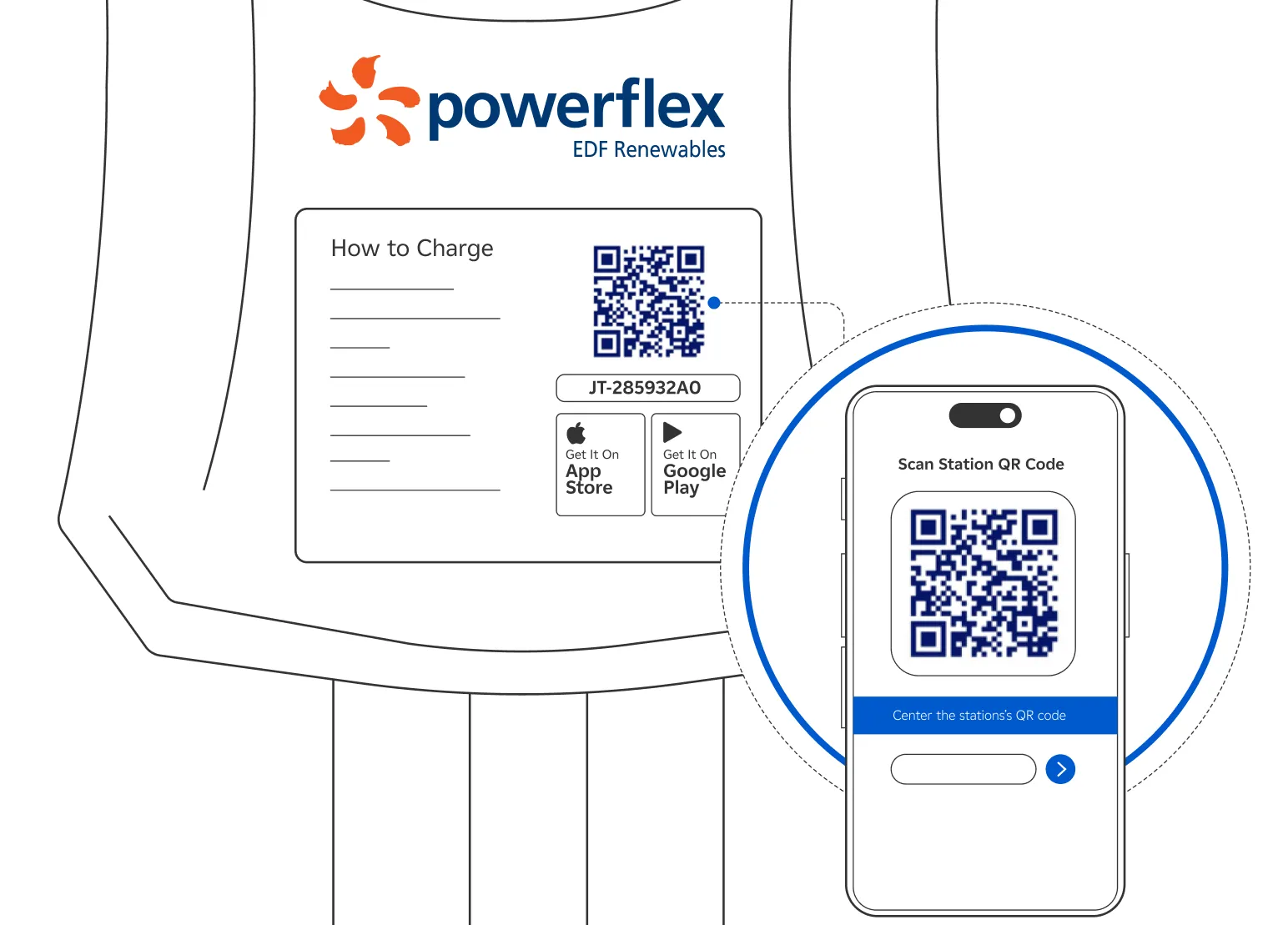
Once at the charging station, tap Start Charging and scan the QR code on the charger — or enter the code situated below the QR code manually.
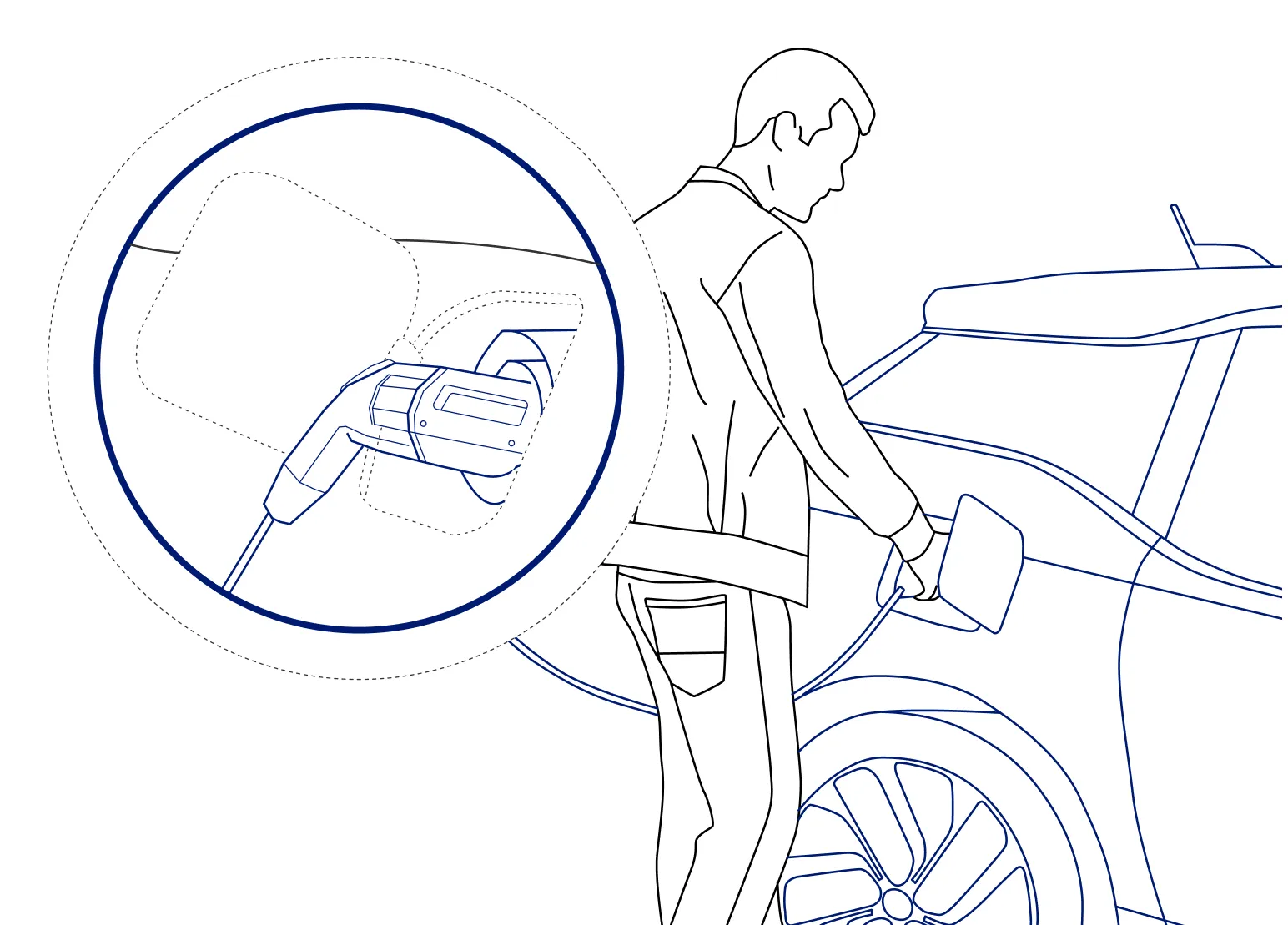
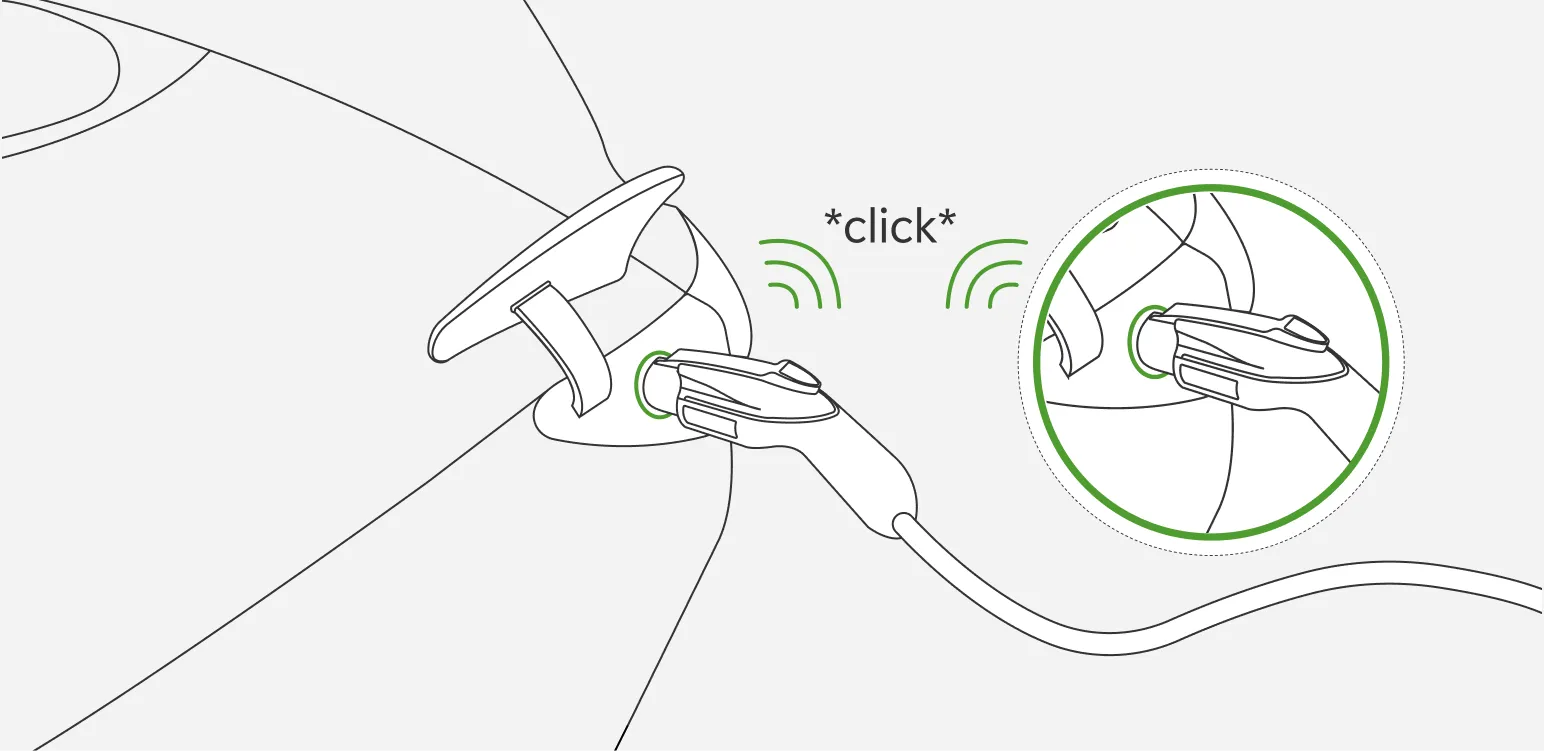
Review and confirm the pricing information on screen, then remove the plug from its holster and insert it firmly into your vehicle. Listen for a click — that’s confirmation of a clean connection.

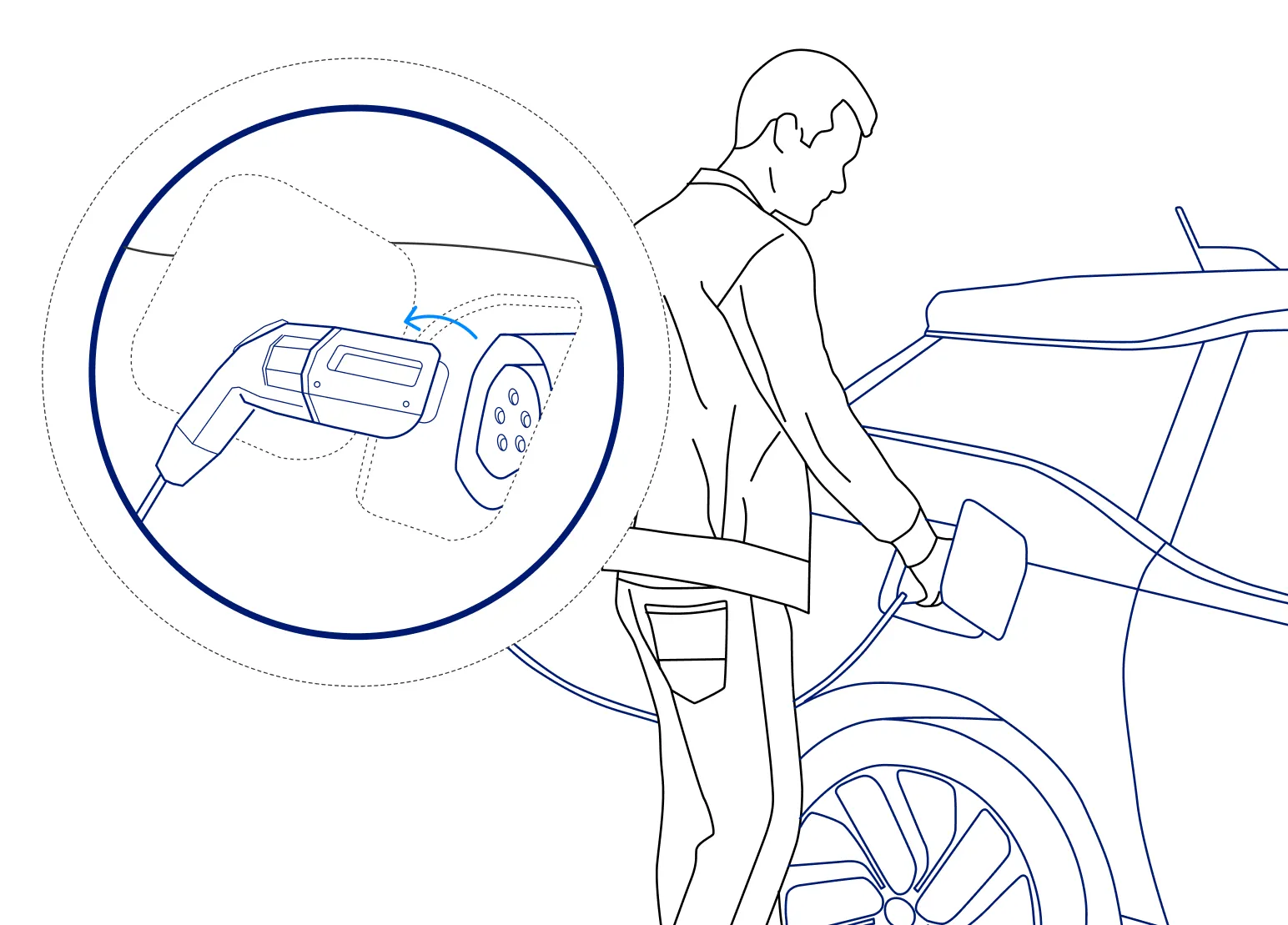
Didn't hear a click? Unplug, wait 20 seconds, and re-scan the station QR code to start over. This resets the handshake between the charger and your car.
You can track your session’s progress in real time from the View Sessions screen. Once you've finished charging, simply unplug your vehicle to end your session.
Pricing is set by the property or employer hosting the chargers and varies by location. To check the rate at any station, tap its map pin in the app and scroll to Price Schedule, or scan the QR code and tap Pricing Details. All applicable pricing is shown on screen before you confirm your session, so there are no surprises.
Some locations use time-of-use (TOU) pricing, where the rate changes based on the time of day or day of the week — typically higher during peak electricity demand. Any TOU pricing will be clearly shown before you start.
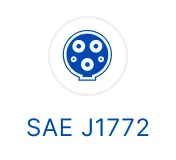
Most PowerFlex Level 2 chargers use the standard J1772 connector, which is compatible with all non-Tesla EVs. Tesla drivers (and drivers of EVs with a NACS Tesla-compatible plug) will need a Tesla-to-J1772 adapter, which is included with most newer Tesla models or available directly from Tesla. Simply attach the adapter to the end of the charger plug before connecting.
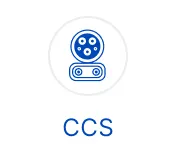
For DC Fast Chargers (DCFC), available connectors include CCS, CHAdeMO, and NACS/Tesla. Tesla drivers at DCFC stations will need a Tesla-to-CCS adapter. Before you arrive, check the Locations tab in the app to confirm which connector types are available at a specific site.


- Some site hosts also set power limits at certain times of day to manage peak electricity costs. That is a decision made by the host, not by PowerFlex. Our commitment is to make the best possible use of whatever power the site provides so that every driver receives as much energy as possible during their visit.
- Charging is fastest when your battery is low. Once it reaches around 80%, most cars, especially on DC fast chargers, automatically slow the charge rate to protect the battery. This is normal.
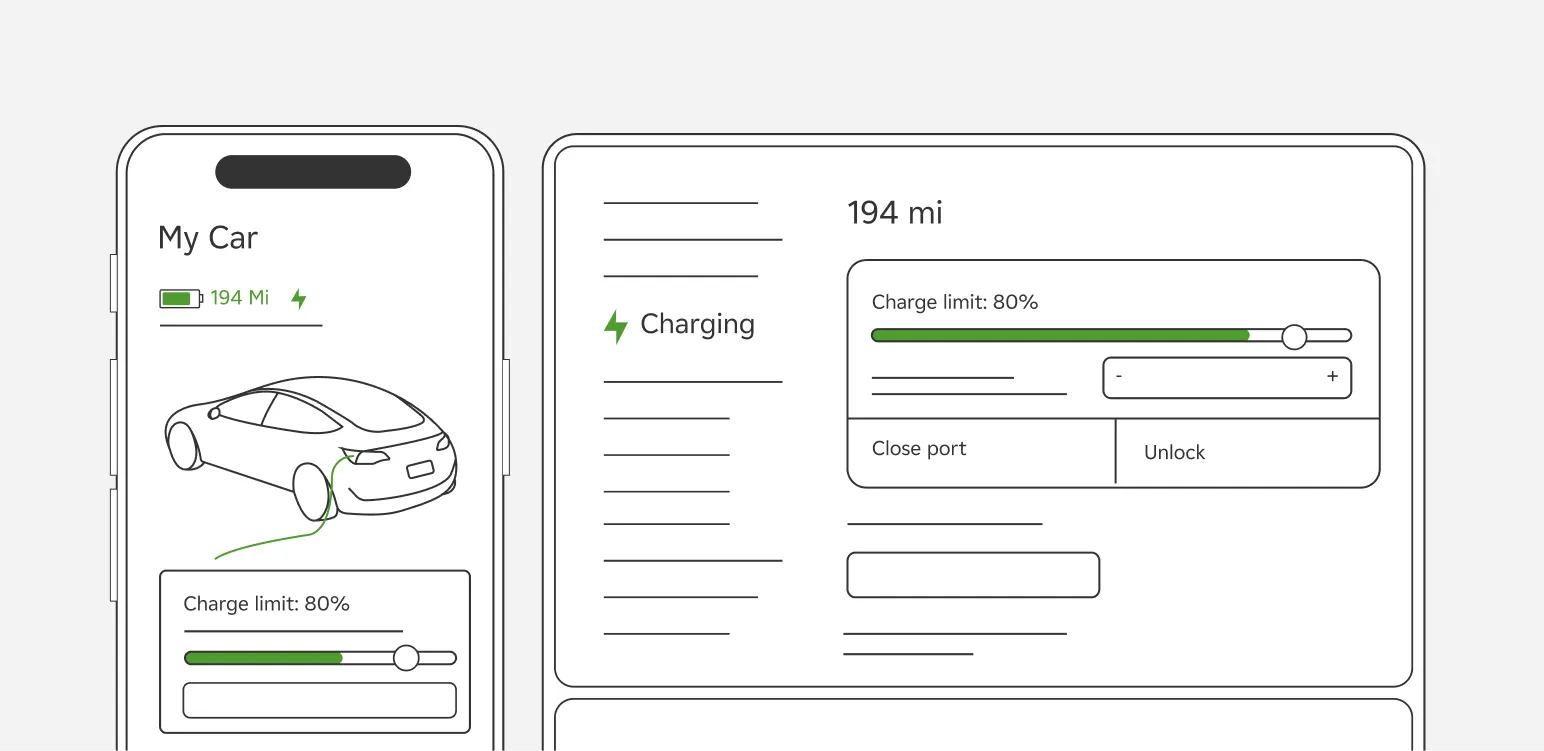
When you’re ready to leave, press the release latch on the charger plug to remove it from your vehicle. If you cannot remove the plug from your car, try unlocking your car with your key first, or try clicking on "Unlock charge port" or similar from your vehicle app. Your session will end automatically as soon as you unplug. (Alternatively, you can stop getting electricity by tapping "Stop charging" in the app, but your session will end only once you unplug.) Be sure to return the plug to its holster on the station.
To view your receipt, open the app, tap the ☰ menu, and go to Payments & Billing → Transaction History. You can also tap Transaction History directly from the View Sessions screen.
No. Depending on the location, there are several app-free options:
- Payment terminal: Some DC Fast Chargers and Level 2 chargers have a built-in card reader that accepts credit cards and Apple/Google Pay.
- Guest checkout: At supported stations, scan the QR code with your camera app and select “Continue as a Guest” to pay without creating an account. A page will launch within your web browser, where you can view your session. When your session ends, you’ll receive a final receipt via email.
- Kiosk: Some sites have a payment kiosk. Plug in, note your parking spot number, then walk to the kiosk to select your space and pay. You can receive a receipt by email or SMS.
Using the PowerFlex app results in a lower pre-authorization hold placed on your payment method (see Payments, Billing, & Refunds).
Open the PowerFlex app and tap the Locations tab. The map shows all PowerFlex stations near your current location, color-coded by availability. Tap any station pin to see connector types, live availability, and pricing. You can also search by address or landmark if you want to plan ahead.
Note that some stations may be behind a gate or restricted to employees. These stations will generally not show in the mobile app unless you are an approved driver.
Troubleshooting
Start by checking the indicator lights on the charger itself. A solid green or blue light means the station is ready. Red or yellow lights indicate a fault state, and the station will not be available until a technician resolves it.
Open the PowerFlex app and tap the Locations tab to search for other available stations nearby. In many cases, at least one other station at the same site should be available and ready to use. If a station is showing offline, try re-scanning its QR code — occasionally the status has already been updated.

If all or most stations at a location appear offline, report the site by scanning the station’s QR code in the Help Center section of the app. Our team monitors site health and may be able to restore connectivity remotely.
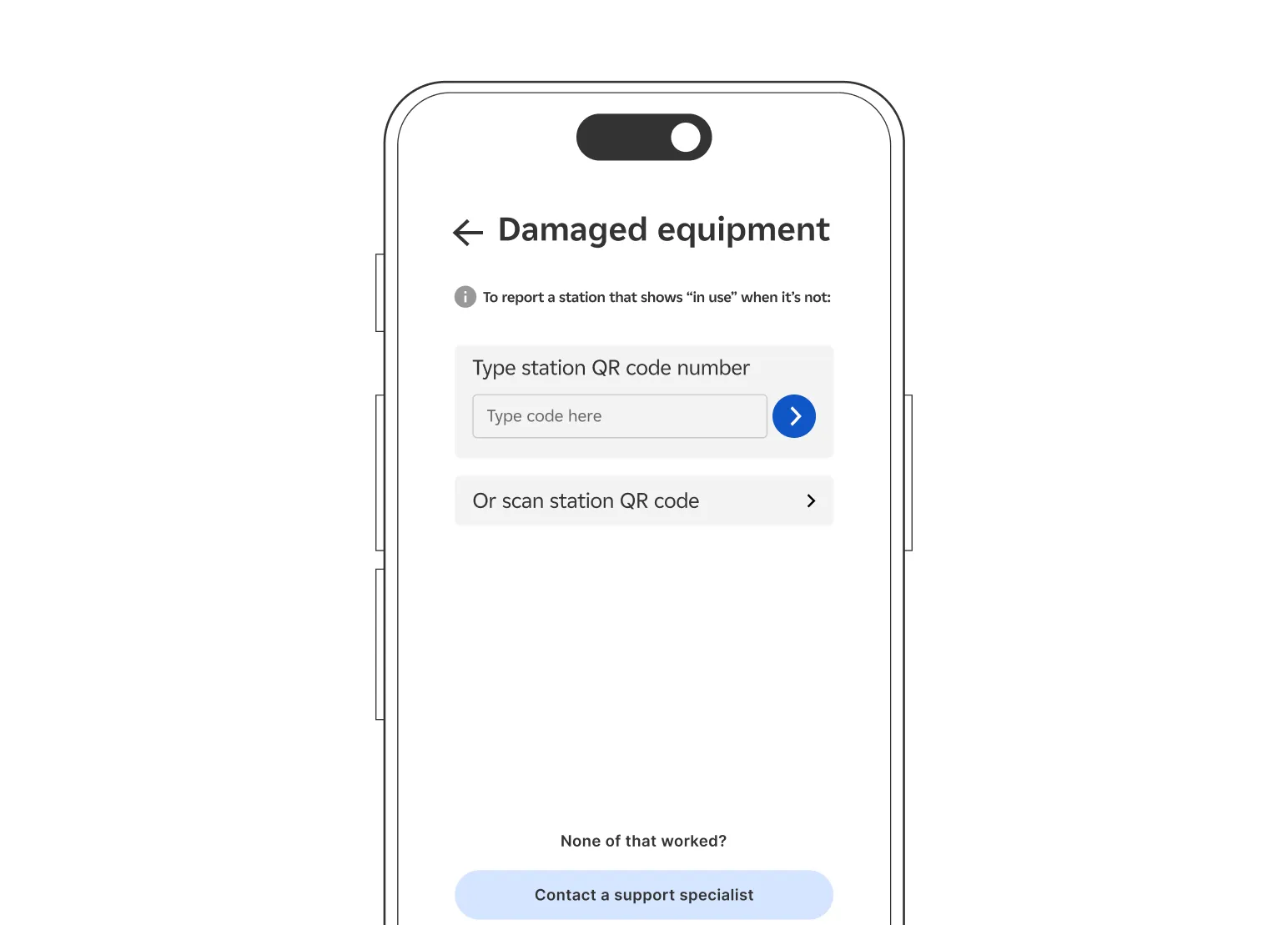
This usually means a previous charging session did not end cleanly, leaving the station in a stuck state. To resolve it, open the PowerFlex app, go to the Help Center and report the station. Our team will clear the stuck session remotely within minutes.
If the issue persists, tap “Contact Support” in the app for immediate assistance.
There are several common reasons a car won’t charge after plugging in, and most can be resolved in under a minute.
1. Bad connection: The plug may not be fully seated. Unplug it, wait about 20 seconds, and re-insert it firmly until you hear a click.
2. Session not claimed: Make sure you scanned the QR code and confirmed pricing in the app. If you skipped this step, unplug, re-scan, accept pricing, and plug back in.
3. Vehicle charging limit reached: Your car’s own settings may have paused charging, e.g., a scheduled departure or a charge limit set in the vehicle. Check your vehicle’s charging settings or manufacturer app.
4. Crossed cables: At multi-unit stations, confirm the cable you're using matches your assigned parking spot.
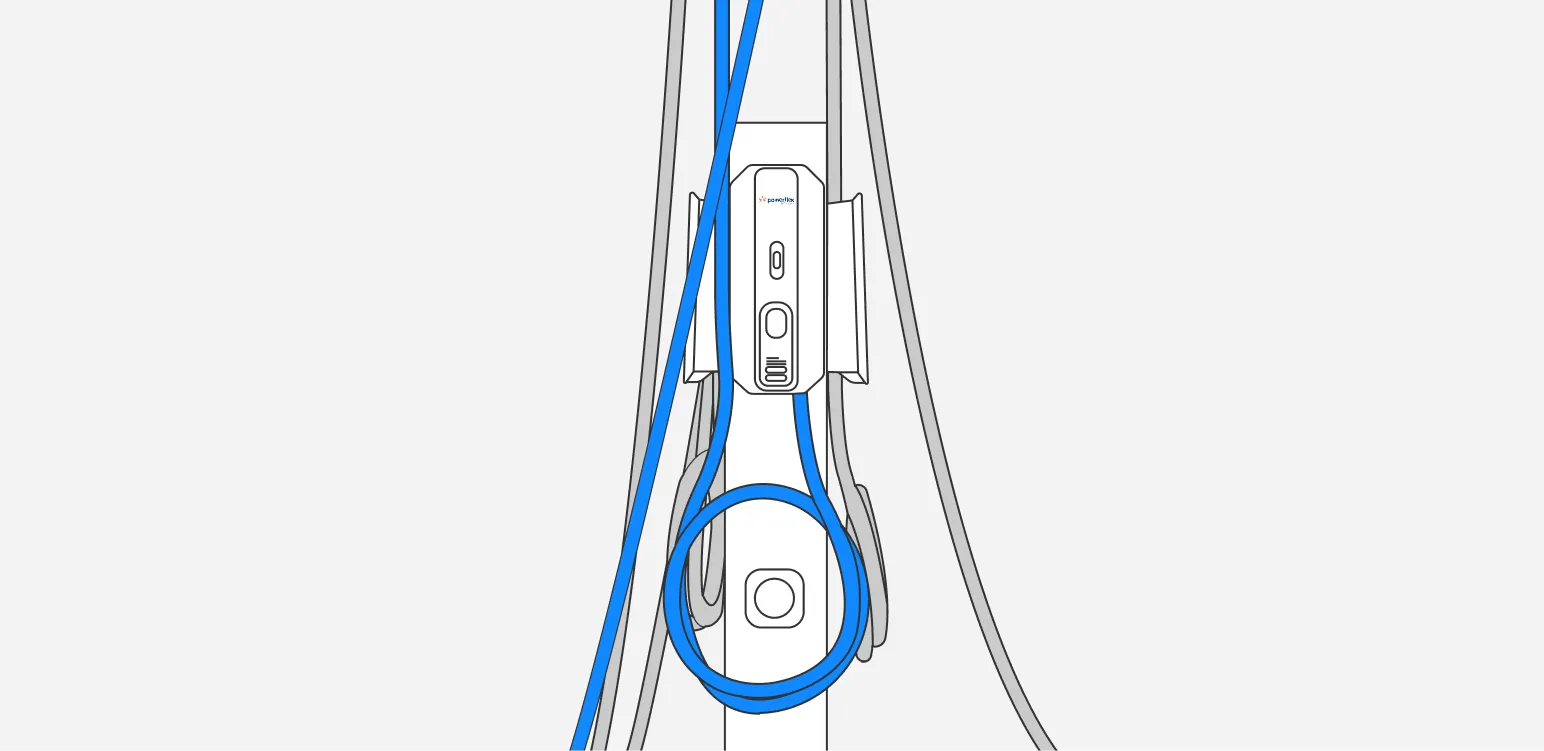
If none of the above resolves the issue, report it by scanning the station’s QR code and selecting “My car is not charging.” Our team will investigate.
Several factors can affect your charge speed on a given session.
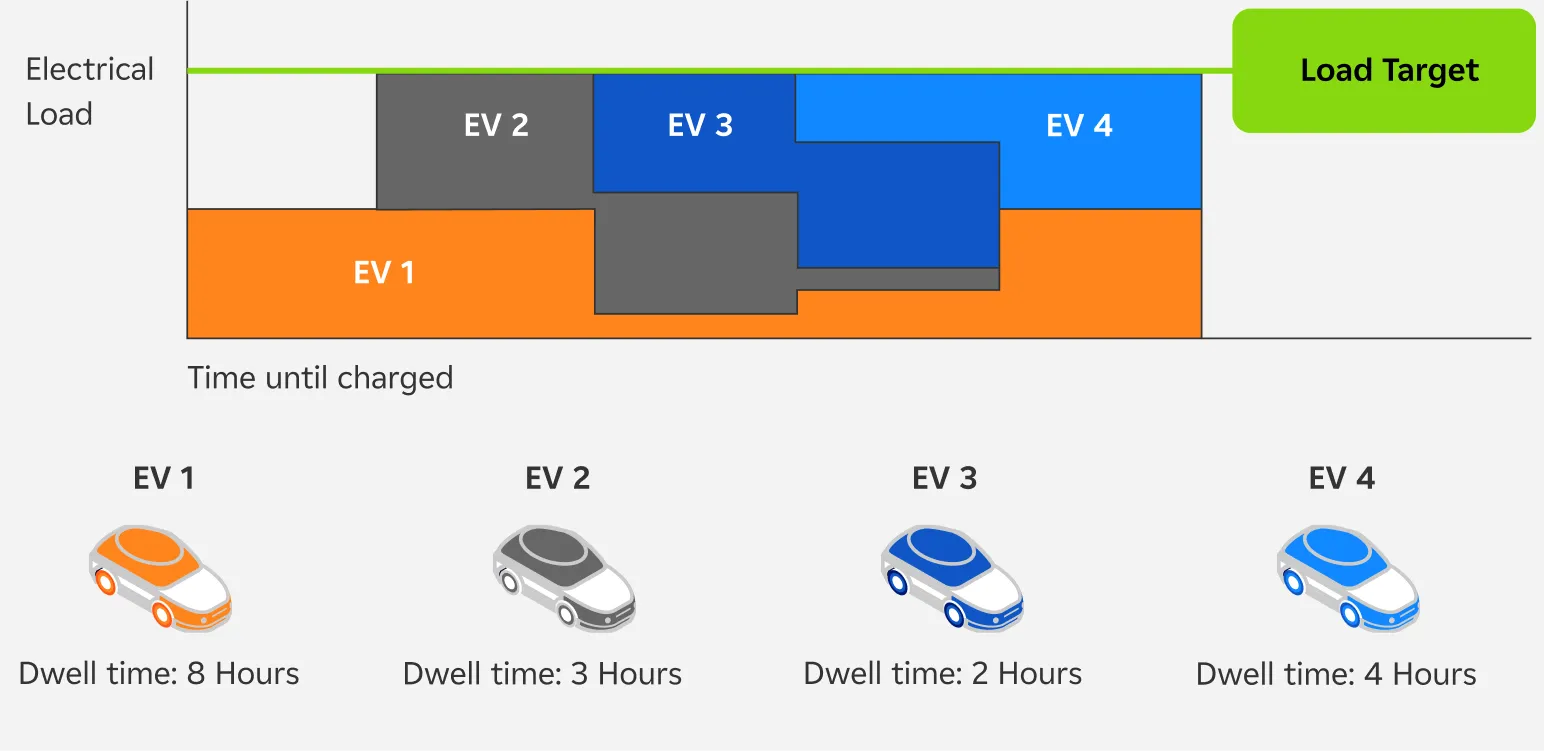
- Adaptive Load Management®: When many vehicles charge simultaneously, the site may distributes available power across all active sessions (the rate typically increases as other drivers unplug). This is normal behavior and not a station fault. You can see if ALM is enabled at the site on the Session screen within the app (blue banner saying power is shared).
- Vehicle settings: Your car may be configured to charge at a lower amperage than the station supports. Check your vehicle’s charging settings and ensure no scheduled time restrictions are active.
- Station connectivity: Occasionally, a weak cellular signal at the site can cause the app to show a delayed or incorrect charge rate. The actual energy delivery may be normal; try refreshing the app.
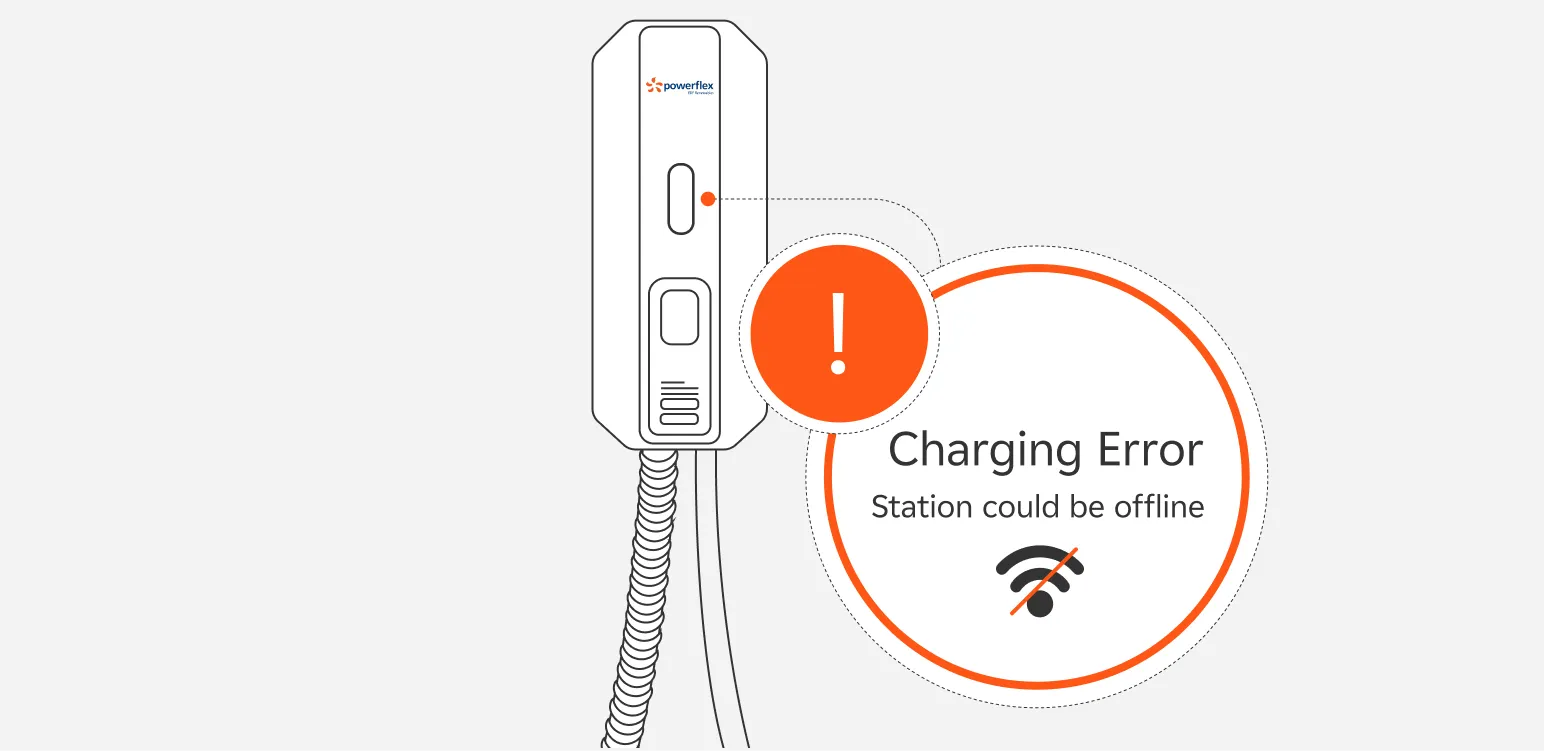
- Station in a fault state: If you are receiving very little or no power and the above do not apply, check the station’s indicator lights and try re-scanning the QR code. Contact support via the app’s Help Center if this does not resolve the issue.
This is almost always resolved by unlocking your vehicle first. Most EVs prevent the charge port from releasing while the car is locked as a theft-prevention measure.
- Lock and then unlock your vehicle using your key fob or the manufacturer's app. The charge port should release immediately.
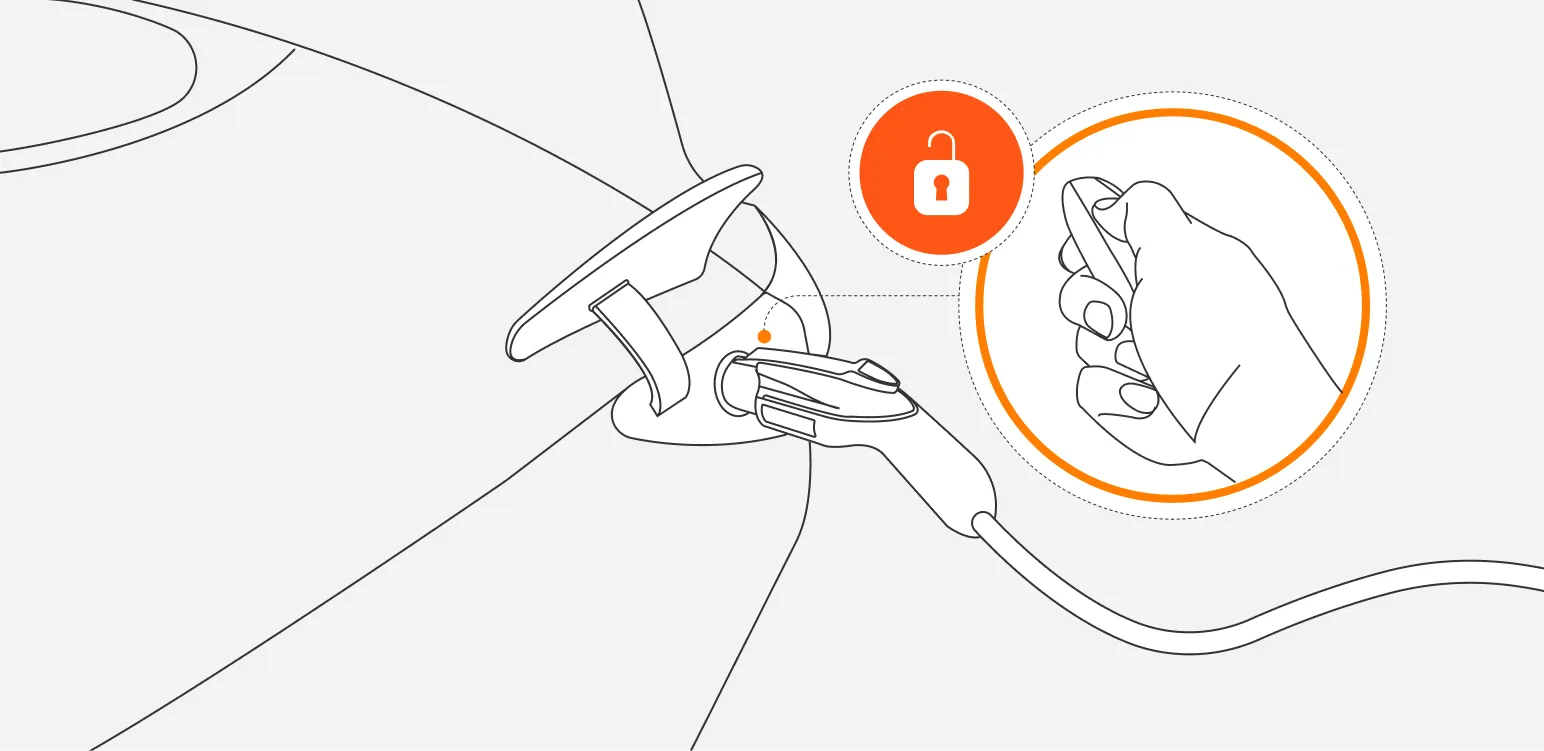
- Tesla drivers: Open the Tesla app and tap “Unlock Charge Port”.
- Environmental factors: Sand, dirt, or debris around the connector can make it harder to disengage. Gently clean around the port.
Our field technicians are only available during business hours and visits require coordination with the site host. If the issue persists after trying the above steps, please contact support by phone.

Safety first: If you are concerned about the safety of yourself or others, move to a safe location before contacting PowerFlex. If you believe there is an emergency, contact emergency services first.
First check whether any indicator lights are illuminated. A red or yellow light means the station is in a fault state and cannot charge until serviced. No lights at all may mean the station has lost power.
To report the station, open the app Help center, select Contact support, and enter the station information on the form to report a problem with a charging station. Our team will be alerted and a technician will be dispatched if needed.
This can happen if a session did not close cleanly when you unplugged — for example, due to a brief network interruption. To resolve it, force-close the PowerFlex app and reopen it. If the session is still showing as active, contact PowerFlex support through the in-app Help Center. Our team can clear stuck sessions remotely, usually within minutes.
You will only be billed for the energy your vehicle actually consumed. Stuck sessions are not double-billed.
PowerFlex chargers communicate via cellular connection. At some sites, signal strength may be weaker — particularly in covered parking structures or basement levels. This can cause a brief delay in session status updates within the app, even though charging is proceeding normally.
Try the following: Move to an area with better phone signal and pull down to refresh the Sessions screen. If the station QR code is slow to respond, wait 10–15 seconds and try again. In most cases, the app will sync within a minute or two.
If your phone does not have connectivity, you can plug in your car and scan the QR code with your phone in Offline Mode. When your phone regains internet connection, the app will start the session and you’ll get a confirmation via a push notification. If you don’t see a push notification, reopen the app once you have connectivity to start the session.
If your signal is very weak and the QR code scan is failing, try entering the code manually instead.
Payments, Billing, & Refunds
The answer depends on your payment method.
- Pay-As-You-Go: When you start a session, your card is pre-authorized (for an amount between $10 and $50, depending on the cost estimate and type of charger). This is a temporary hold, not a final charge. Your bank will replace it with the actual session cost within 72 hours. If the hold has not cleared after 72 hours, contact your bank directly.
- PowerFlex Wallet: If you have auto-refill enabled, your card will be charged automatically when your PowerFlex Wallet balance drops below the threshold you set. You can review your auto-refill settings and see all past transactions under ☰ → Payments & Billing.
- On-charger payment terminal: If you used your card directly on the payment terminal, your card is pre-authorized (for an amount typically of $50). This is a temporary hold, not a final charge. Your bank will replace it with the actual session cost within 72 hours. If the hold has not cleared after 72 hours, contact your bank directly.
Not sure which payment method is active? Open the app and check the Payments & Billing screen and “View transactions” — it clearly shows whether you are using PowerFlex Wallet or Pay-As-You-Go.
Pay-As-You-Go charges your credit or debit card directly for each session. Because the final amount is not known until the session ends, your bank places a temporary pre-authorization hold (between $10 and $50) at the start. This hold is replaced by the actual cost within 72 hours.
PowerFlex Wallet works like a prepaid balance: You load funds in advance and each session draws from that balance. There are no temporary holds, statements are cleaner, and replenishing is automatic if you enable auto-refill. To switch to PowerFlex Wallet, go to ☰ → Payments & Billing → Add Funds.
Idle fees are assessed by some site hosts when a car remains plugged in after it has finished charging and is no longer drawing energy. They are designed to encourage drivers to free up spaces for others once their session has ended. The idle fee rate and grace period vary by location and are always shown on the Pricing screen before you confirm your session.
To avoid idle fees, keep an eye on your session status in the app and unplug promptly once your car has reached its charge target.
Even at “free” stations, two scenarios can result in a charge:
- Time-of-use (TOU) pricing may activate mid-session if the site transitions to a paid rate while you are charging. (This is set by the site host.) All applicable pricing details are shown before you confirm your session.
- Idle fees can apply once your vehicle stops drawing energy, even if the active charging period was free. Tap Transaction History in the app to see a full breakdown of any charge.
Contact our support team directly through the in-app Help Center.
For a PowerFlex Wallet refund (e.g., if you’re leaving the PowerFlex network and want your remaining balance back): In the app’s Help Center, tap Payments and Refunds → “I want a wallet refund,” select your reason, and submit. Refunds are processed within 5–7 business days to your original payment method.
Yes. Contact PowerFlex support as soon as possible — ideally within 24 hours — through the in-app Help Center or at support@powerflex.com. Include the amount loaded and the date of the transaction. Our team will review it and process a refund for the duplicate load to the same payment method initially used.
Open the app, tap the ☰ menu, select Payments & Billing, then tap Add Funds. Enter the amount you’d like to load and confirm with your saved payment method. You can also set up auto-refill so your PowerFlex Wallet tops up automatically whenever the balance drops below a threshold you choose.
Account & App
Try these steps in order:
- Ensure you have good lighting. If it’s dark, use your phone’s flashlight before scanning.
- Hold the camera 6–10 inches from the QR code and keep it steady for 2–3 seconds.
- Force-close the PowerFlex app, reopen it, and try scanning again.
- If problems continue, restart your device.
- If the scan still fails, tap Enter Code Manually and type the alphanumeric code printed on the station sticker.
On the PowerFlex app login screen, tap Forgot Password and enter the email address associated with your account. You’ll receive a password reset link by email within a few minutes. Tap the link and follow the prompts to set a new password. If you don’t receive the email within 5 minutes, check your spam or junk folder. If the link doesn’t work, enter the code that shows at the bottom of the email.
Go to My Profile in the app and update your email address. You may be asked to verify your new email address with a code we’ll send by email.
You can request account deletion by contacting PowerFlex support via the in-app Help Center or by emailing support@powerflex.com. Please note that if you have a remaining PowerFlex Wallet balance, you can request a refund before deletion is processed (see the Refund section above).
This error means you are trying to use a private charging site that is restricted to specific employees, residents, or tenants. Access is tied to the email address your employer or property manager enrolled in the PowerFlex system.
The most common cause is using the wrong email to log in. Log out of the app and sign in again using the email address associated with your workplace or building benefits. If the issue persists, contact the person who manages the EV charging program at your location — they can verify or grant your access.
Discounted or sponsored charging is almost always tied to a specific work or school email address. The most common cause of this issue is a mismatch: Your PowerFlex account may be registered to a personal email address rather than the one your employer or program administrator enrolled.
To fix it: update your email in My Profile using your work or school email and try again. If you’ve verified that the email address matches and the discount still isn’t applying, contact PowerFlex support with your work email address so we can investigate.
In the app’s Help Center, tap Contact Support. Select Report an Error to submit a bug report with details and screenshots, or Feature Request to suggest an improvement. Our product team reviews all submissions. You can also reach us directly at support@powerflex.com. Please include your device model, app version, and a description of what happened.
Download the App
Download the free PowerFlex app to find stations, start sessions, manage payments, and get help — all in one place.

- Available for iOS (iPhone) and Android
- Free to download — only pay for charging
- Includes in-app Help Center with self-serve troubleshooting


App User Guide
New to PowerFlex? Download the full App User Guide for a step-by-step walkthrough of every feature, from creating your account to managing your billing history.
Download PDF